WebGear API
Overview
WebGear is a powerful ASGI Video-Broadcaster API ideal for transmitting Motion-JPEG-frames (or low-latency H.264 video) from a single source to multiple recipients via the browser.
WebGear API works on Starlette's ASGI application and provides a highly extensible and flexible async wrapper around its complete framework. WebGear can flexibly interact with Starlette's ecosystem of shared middleware, mountable applications, Response classes, Routing tables, Static Files, Templating engine(with Jinja2), etc.
WebGear API can stream video in two modes: classic Motion-JPEG over HTTP (default), or low-latency H.264 over WebSockets, both served by a Uvicorn ASGI Server. See Modes of Operation ➶ for their differences.
In layman's terms, WebGear acts as a powerful Video Broadcaster that transmits live video-frames to any web-browser in the network. Additionally, WebGear API also provides internal wrapper around VideoGear, which itself provides internal access to CamGear, PiGear, and FFGear APIs, thereby granting it exclusive power for transferring frames incoming from any source to the network.
Modes of Operation
New in v0.3.7
H.264 Mode was added in v0.3.7. Previous versions only streamed in MJPEG Mode.
WebGear primarily operates in following modes, selectable with its streaming_mode parameter:
When streaming_mode="mjpeg" (default), WebGear uses an intraframe-only compression scheme, where each video-frame is separately encoded as a JPEG image with simplejpeg library, and then streamed as Motion-JPEG over HTTP at /video endpoint using Starlette's Multipart Streaming Response.
Pros
- Lower server CPU: No FFmpeg encoder process is spawned per viewer.
- No FFmpeg required on the server, and nothing gets downloaded on Windows.
- Plays on any browser over plain
http://on any device in the network, without HTTPS. - Supports Custom Sources, and JPEG Performance Enhancing Attributes.
Cons
- Many times more bandwidth than H.264, since every frame is a complete JPEG image.
- Lower visual quality at same bandwidth, and choppier playback on slower networks.
When streaming_mode="h264", WebGear encodes frames into low-latency H.264 video with FFmpeg (-preset ultrafast -tune zerolatency), and pushes one complete frame per binary message over WebSockets at /ws/video endpoint. WebGear's Default Theme then decodes them off main-thread with browser's hardware-accelerated WebCodecs VideoDecoder inside a Web Worker, and paints them on a <canvas>. The /video MJPEG endpoint stays available as well, and the Default Theme automatically falls back to it whenever H.264 can't be played.
Pros
- ~9x (high-motion) to ~38x (static scenes) less bandwidth than MJPEG, since H.264 only encodes changes between frames (interframe compression).
- Better visual quality at same bandwidth, with ~50ms server-to-canvas latency on
localhost. - Hardware-accelerated decoding off main-thread, so browser stays responsive even at high resolutions.
- Complete control over encoder with any FFmpeg parameter through
h264_optionsattribute. - Automatically falls back to MJPEG on unsupported browsers, insecure origins, or WebSocket failures.
Cons
- Higher server CPU: Every connected viewer starts its own FFmpeg encoder process, so server CPU usage grows with the number of viewers.
- Requires FFmpeg with
libx264encoder on the server. On Windows , WebGear looks for FFmpeg on startup, and may download a static FFmpeg build if none is found (or set your own withcustom_ffmpeg). - Browser needs WebCodecs support (Chrome/Edge 94+, Safari 16.4+, Firefox 130+) inside a Secure Context (i.e.
https://orhttp://localhost), otherwise it falls back to MJPEG. - Unavailable with Custom Sources, which always stream MJPEG.
Which one to choose?
Stick with default MJPEG Mode for many simultaneous viewers on a low-power server, plain http:// access across the network, or when FFmpeg is unavailable. Switch to H.264 Mode (streaming_mode="h264") for few viewers, high resolutions, or bandwidth-constrained networks.
Benchmarks: MJPEG vs H.264
Measured on a 16-core x86-64 Linux machine with FFmpeg 4.4 libx264 defaults above, against WebGear's default MJPEG settings (simplejpeg, quality 90, 4:2:2, fastdct), on identical 30fps frames (Big Buck Bunny for motion, a repeated frame for static scene):
| Source | MJPEG | H.264 (keyframe / median delta) | Bandwidth Saving |
|---|---|---|---|
| 720p30, high-motion | 6.32 MB/s | 0.80 MB/s (168 KB / 25.8 KB) | 7.9x (87.3%) |
| 1080p30, high-motion | 11.24 MB/s | 1.27 MB/s (296 KB / 40.1 KB) | 8.8x (88.7%) |
| 1080p30, static scene | 12.22 MB/s | 0.32 MB/s (296 KB / 0.22 KB) | 38.0x (97.4%) |
Latency: Server-side frame-in → H.264-frame-out takes ~44-49ms median (p95 ≤ 55ms), which includes one frame-interval for detecting frame boundaries, plus ~3ms browser decode on localhost (i.e. ~50ms server-to-canvas, excluding camera capture, network and display).
Results vary with content, resolution, CPU and network. Real-world cameras usually lie between the high-motion and static rows.
Data-Files Auto-Generation WorkFlow for WebGear
Disabling Auto-Generation process in WebGear
Starting with vidgear v0.3.0, you can now completely disable Auto-Generation process in WebGear API using skip_generate_webdata optional boolean attribute. When {skip_generate_webdata:True}, no default data files will be downloaded or validated during initialization.
Only /video route is available when {skip_generate_webdata:True} in WebGear API. All other default routes will be JSONResponses with 404/500 status codes.
Customizing default video endpoint path
Starting with vidgear v0.3.1, you can change default /video video endpoint path to any alphanumeric string value, using custom_video_endpoint optional string attribute. For example:
Only alphanumeric string with no space in between are allowed as custom_video_endpoint value. Any other value will be discarded.
WebGear's Default Theme (v0.2.0+) automatically follows the customized video endpoint path (including H.264's /ws/<endpoint> WebSocket path).
# custom alphanumeric video endpoint string
options = {"custom_video_endpoint": "xyz"}

# initialize WebGear app
web = WebGear(source="foo.mp4", logging=True, **options)
/xyz path. On initializing WebGear API, it automatically checks for three critical data files(i.e index.html, 404.html & 500.html) inside the templates folder, and two script files(i.e custom.js & videoFrameDecoderWorker.js) inside the static/js folder of the webgear directory at the default location which gives rise to the following two possible scenario:
- If data-files found: it will proceed normally for instantiating the Starlette application.
- If data-files not found: it will trigger the Auto-Generation process
Default Location
- A default location is the path of the directory where data files/folders are downloaded/generated/saved.
- By default, the
.vidgearthe folder at the home directory of your machine (for e.g/home/foo/.vidgearon Linux ) serves as the default location. - But you can also use WebGear's
custom_data_locationdictionary attribute to change/alter default location path to somewhere else.
Identifying Default location
You can set logging=True during initialization, for easily identifying the selected default location, which will be something like this on a Linux machine:
Auto-Generation process
Info
-
You can also force trigger the Auto-generation process to overwrite existing data-files using
overwrite_default_filesdictionary attribute. Remember, only downloaded default data files(given above) will be overwritten in this process but any other file/folder will NOT be affected. -
It is advised to enable logging(
logging=True) on the first run for easily identifying any runtime errors.
- On triggering this process, WebGear API creates
webgeardirectory, andtemplatesandstaticfolders inside along withjs,css,imgsub-folders at the assigned default location. -
Thereby at this default location, the necessary default data files will be downloaded from a dedicated Github Server inside respective folders in the following order:
-
Finally these downloaded files thereby are verified for errors and API proceeds for instantiating the Starlette application normally.
WebGear's Default Template
Modernized in v0.3.7
WebGear's Default Theme v0.2.0 adds the H.264 WebCodecs streaming engine with automatic MJPEG fallback, a live telemetry HUD (status, codec, resolution, FPS, bandwidth & decode latency), and a modern dark UI with zero external dependencies (no CDN fonts, icons or scripts).
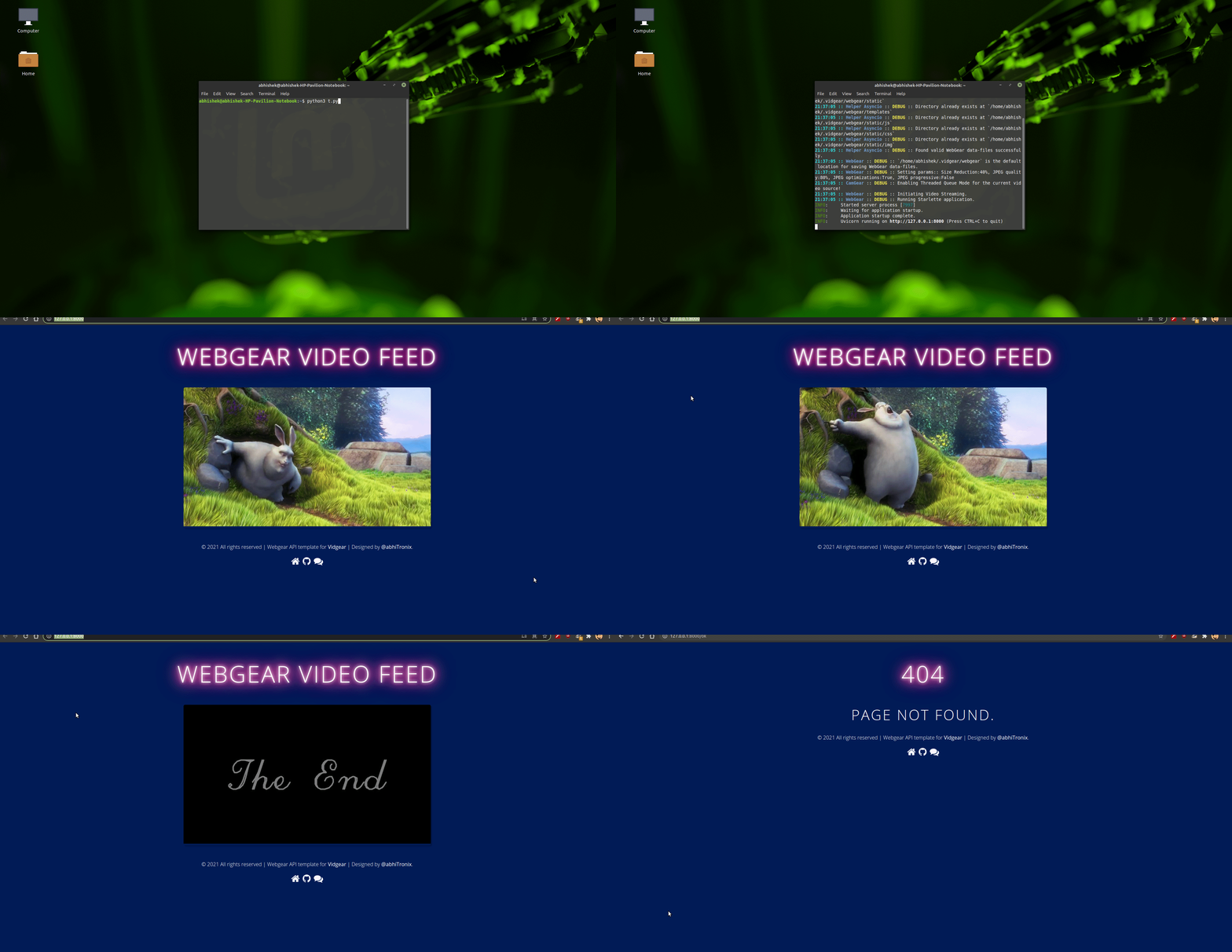
The WebGear API by default uses simple & elegant WebGear's Default Theme which looks like something as follows:
Index.html
Can be accessed by visiting WebGear app server, running at http://localhost:8000/:

404.html
Appears when respective URL is not found, for example http://localhost:8000/ok:

500.html
Appears when an API Error is encountered:
If logging is enabled and an error occurs, then instead of displaying this 500 handler, WebGear will respond with a traceback response.

Usage Examples
After going through WebGear Usage Examples, Checkout more bonus examples here ➶
Parameters
References
FAQs