WebGear_RTC API
Overview
WebGear_RTC is similar to WeGear API in many aspects but utilizes WebRTC technology under the hood instead of Motion JPEG, which makes it suitable for building powerful video-streaming solutions for all modern browsers as well as native clients available on all major platforms.
New in v0.2.1
WebGear_RTC API was added in v0.2.1.
WebGear_RTC is implemented with the help of aiortc library which is built on top of asynchronous I/O framework for Web Real-Time Communication (WebRTC) and Object Real-Time Communication (ORTC) and supports many features like SDP generation/parsing, Interactive Connectivity Establishment with half-trickle and mDNS support, DTLS key and certificate generation, DTLS handshake, etc.
WebGear_RTC can handle multiple consumers seamlessly (every peer gets every frame) and supports ICE (Interactive Connectivity Establishment) protocol with user-defined STUN (Session Traversal Utilities for NAT), and TURN (Traversal Using Relays around NAT) servers (via ice_servers attribute) that help us to seamlessly establish direct media connection with the remote peers for uninterrupted data flow. It also allows us to define our custom streaming class with suitable source to transform frames easily before sending them across the network(see this doc example).
WebGear_RTC API works in conjunction with Starlette ASGI application and can also flexibly interact with Starlette's ecosystem of shared middleware, mountable applications, Response classes, Routing tables, Static Files, Templating engine(with Jinja2), etc.
Additionally, WebGear_RTC API also provides internal wrapper around VideoGear, which itself provides internal access to CamGear, PiGear, and FFGear APIs.
Data-Files Auto-Generation WorkFlow for WebGear_RTC
Same as WebGear, WebGear_RTC API automatically checks for critical data files(i.e index.html, 404.html & 500.html inside the templates folder, and custom.js inside the static/js folder) on initialization of the webgear_rtc directory at the default location which gives rise to the following two possible scenario:
- If data-files found: it will proceed normally for instantiating the WebRTC media server through Starlette application.
- If data-files not found: it will trigger the Auto-Generation process
Default Location
- A default location is the path of the directory where data files/folders are downloaded/generated/saved.
- By default, the
.vidgearthe folder at the home directory of your machine (for e.g/home/foo/.vidgearon Linux ) serves as the default location. - But you can also use WebGear_RTC's
custom_data_locationdictionary attribute to change/alter default location path to somewhere else.
Identifying Default location
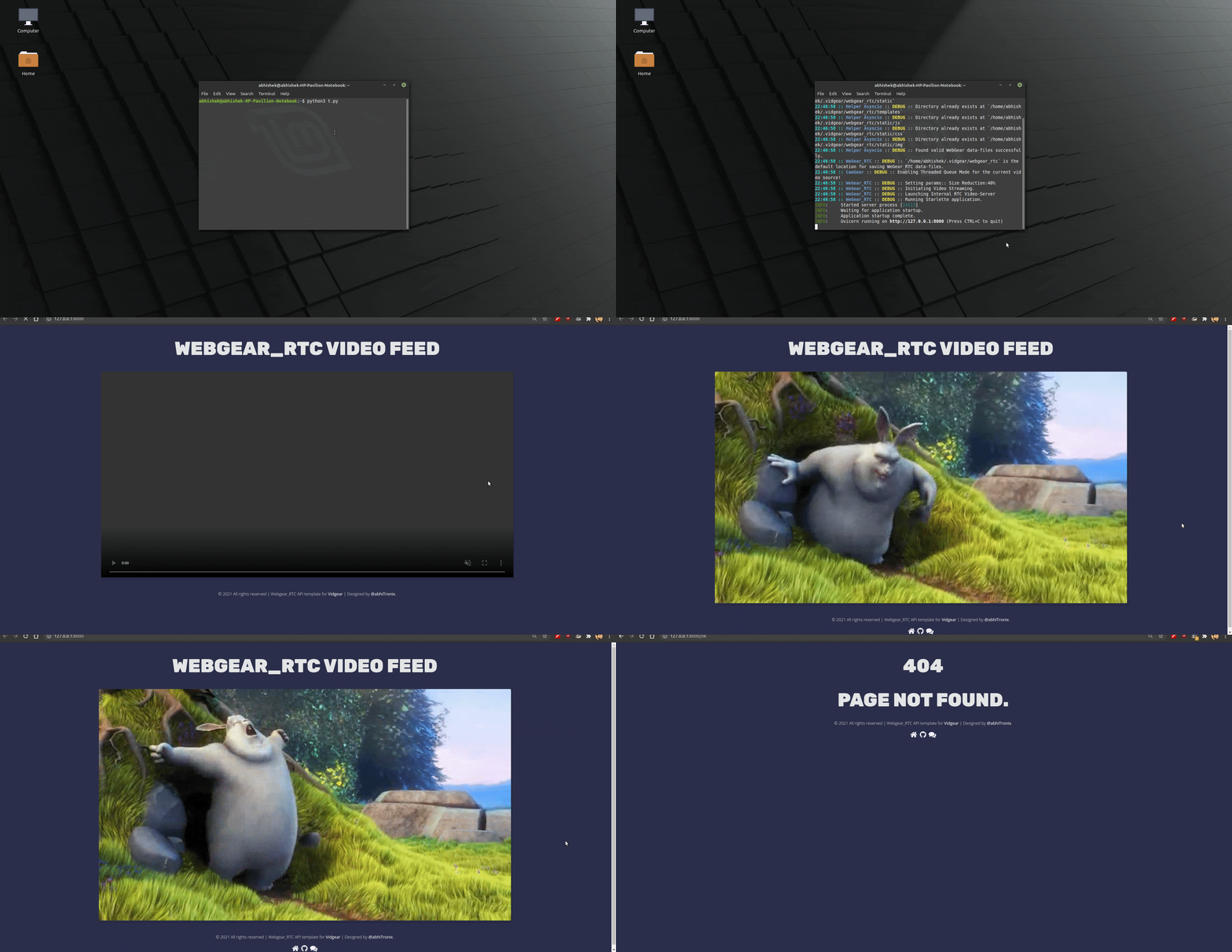
You can set logging=True during initialization, for easily identifying the selected default location, which will be something like this on a Linux machine:
Auto-Generation process
Info
-
You can also force trigger the Auto-generation process to overwrite existing data-files using
overwrite_default_filesdictionary attribute. Remember, only downloaded default data files(given above) will be overwritten in this process but any other file/folder will NOT be affected. -
It is advised to enable logging(
logging=True) on the first run for easily identifying any runtime errors.
- On triggering this process, WebGear_RTC API creates
webgear_rtcdirectory, andtemplatesandstaticfolders inside along withjs,css,imgsub-folders at the assigned default location. -
Thereby at this default location, the necessary default data files will be downloaded from dedicated vidgear-vitals repository (GitLab mirror first, GitHub as fallback) inside respective folders in the following order:
-
Finally these downloaded files thereby are verified for errors and API proceeds for instantiating the Starlette application normally.
WebGear_RTC's Default Template
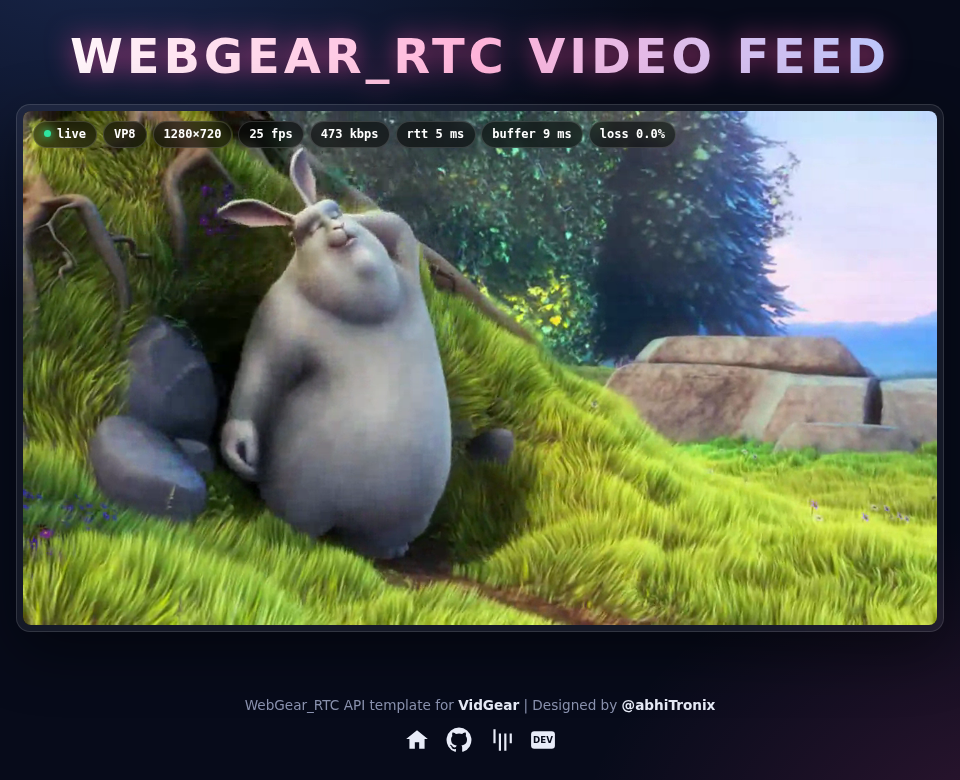
The WebGear_RTC API by default uses simple & elegant WebGear_RTC's Default Theme which looks like something as follows:
New in Default Theme v0.2.0
- Real-time Performance Overlay: live status, codec, resolution, FPS, bitrate, round-trip time, jitter-buffer delay and packet-loss pills, read from browser's WebRTC
getStats(). - Auto-Reconnect: reconnects with backoff when connection fails or stream stalls, frees its server peer on page reload/close, and shows
endedonce stream is over. - Zero external dependencies: no CDN fonts, icon packs or scripts, and no hard-coded public STUN server. Endpoints are relative, so it also works behind reverse-proxy sub-paths.
- Modern dark UI (same as WebGear's theme) with click-to-toggle fullscreen.
Existing installs keep their old files, so use overwrite_default_files attribute once to get it.
Index.html
Can be accessed by visiting WebGear_RTC app server, running at http://localhost:8000/:
404.html
Appears when respective URL is not found, for example http://localhost:8000/ok:

500.html
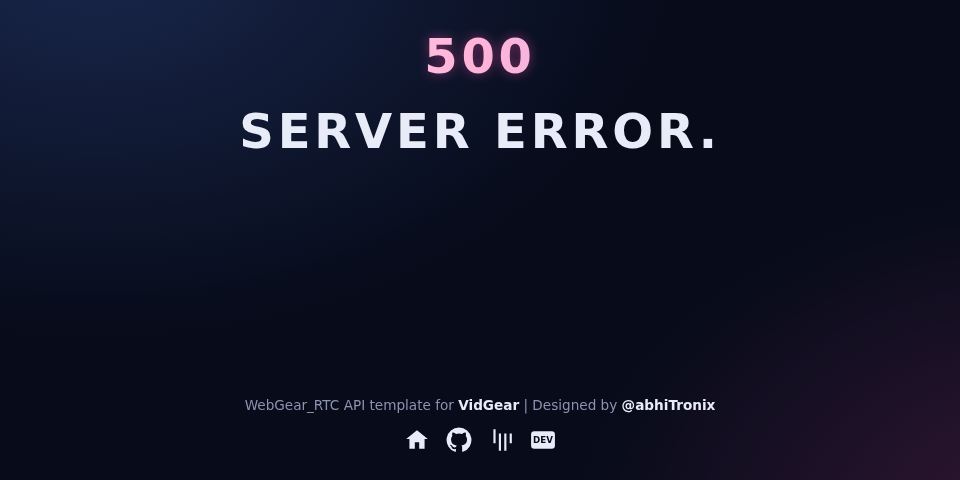
Appears when an API Error is encountered:
If logging is enabled and an error occurs, then instead of displaying this 500 handler, WebGear_RTC will respond with a traceback response.
Limitations
- Codecs: only VP8 and H.264 video (aiortc's encoders), with aiortc's own bitrate ranges (H.264:
0.5-3 Mbps, VP8:0.25-1.5 Mbps). Usecodecattribute to force one. Frames with odd width/height are cropped by one pixel to even dimensions. - Framerate: frames are paced at source's framerate (if reported by the source, up to
120), otherwise at30fps. - Video only: no audio or data channels.
- Source is paused while no peer is connected, and once the source ends (without
enable_infinite_frames), new peers are refused with HTTP503until the app is restarted. - No authentication:
/,/offerand/close_connectionendpoints are public, see native clients ➶.
Usage Examples
After going through WebGear_RTC Usage Examples, Checkout more bonus examples here ➶
Parameters
References
FAQs